Heroku Connect is genuinely point-and-click: map a Salesforce object to a Postgres table in the UI and data starts moving both ways within minutes. That is the pitch, and it is accurate.
What the pitch leaves out is that several of its defaults are wrong for anything beyond a demo, and a few of its failure modes are silent — data that quietly never syncs, tables that quietly disappear. These are the eight that have cost us the most time on real projects.
1. You need an External ID, and it must be one you generate
Connect asks for a Unique External ID as soon as you configure a Postgres-to-Salesforce mapping. It is not a formality.
Connect reads and writes on separate threads. A reader can process an inbound write from Salesforce before an outbound write from Postgres has finished recording the resulting Salesforce ID against those same records. With an external ID configured, Connect matches inbound records first by Salesforce ID where one exists, and falls back to the external ID where it does not. Whichever process gets there first, the record still matches — no integrity errors, no duplicates.
It also gives you a way to build relationships before Salesforce IDs exist. Inserting a master-detail pair from Postgres normally needs the parent’s Salesforce ID on the child, which you do not have yet; referencing the parent’s external ID instead works.
Populate it with a GUID at INSERT time, and then treat it as immutable. It is an alias for a Salesforce ID: it must never change, never be reused, and be generated by something with the same uniqueness guarantees.
Two things not to use:
- Postgres integer sequences. Not guaranteed unique in this context.
- The
idcolumn in the Connect database. These reset when you import your configuration into a new database, and when you reload a table.
2. Formula and roll-up summary fields silently stop syncing
Formula and roll-up summary fields are computed by Salesforce at query time, and can pull values from parent objects through master-detail or lookup relationships.
Here is the problem: when a change in the parent alters a child’s formula value, the child’s SystemModStamp does not update. Connect polls for changes using that timestamp. So the child record does not look modified, does not get picked up, and the value in Postgres stays stale indefinitely. Nothing errors.
Compute these values on the Postgres side with a trigger function instead. It is more work up front, and it is the only version that stays correct.
3. A reload will delete anything you put in the Connect schema
Apps usually need a few tables and functions that are not synced to Salesforce. The obvious place to put them is alongside the mapped tables, in whatever schema Connect is using — commonly salesforce.
Do not. Reloading the connection drops and recreates that schema’s contents, and your unmapped tables and functions go with it. It is an easy mistake to make and an unpleasant one to discover, because reloads are usually something you do while fixing an unrelated problem.
Create a separate helper schema in the same database for anything Connect did not put there.
4. Large writes back to Salesforce are slower than you expect
Connect writes to Salesforce over the SOAP or Bulk API, in chunks of 200 or 5,000 records. When you are pushing millions of rows from Postgres, that chunking is the bottleneck, and there is no setting that removes it.
One workaround, if you are trying to stay under Bulk API limits: Connect caps the number of records per chunk, but says nothing about how large a single record may be. So you can add a large Long Text Area field to a Salesforce object, serialise a batch of records into it from Heroku, let Connect sync the small number of resulting rows, and deserialise them with an Apex trigger that writes into the real target object.
Be clear-eyed about what that costs. You are trading Connect’s error handling for your own, doing the deserialisation inside Apex governor limits, and giving up any field-level visibility of the data in transit. It solves a specific problem — bulk volume against API limits — and it is the wrong choice for anything else. Where you can simply use the Bulk API directly, do that.
5. Reloading a table renumbers your Postgres rows
A reload truncates the Postgres table and re-inserts everything from Salesforce. Any sequence or auto-number column is regenerated in the process, so the row that was id = 4211 is now something else.
If any part of your app — or any other table — holds a reference to those numbers, those references are now wrong, and nothing will tell you. Reference sfid or your unique external ID instead. Both survive a reload.
6. Sync through a dedicated integration user
Connect authenticates to Salesforce as a specific user, and every record it touches carries that user in Created By and Last Modified By.
Use a dedicated user named something unmistakable — Integration User — rather than a real person’s account. It makes record history readable, it stops the sync breaking when someone leaves and their account is deactivated, and it lets you scope the profile to exactly the objects and fields the mapping needs.
7. Encrypted fields arrive masked
A field encrypted in Salesforce syncs to Postgres as *****. Not the value, not an error — the mask.
Decide what to do about that during design rather than after. Usually it means the Heroku side works from a different field, or does not receive that data at all.
8. Know what makes Connect use the Bulk API
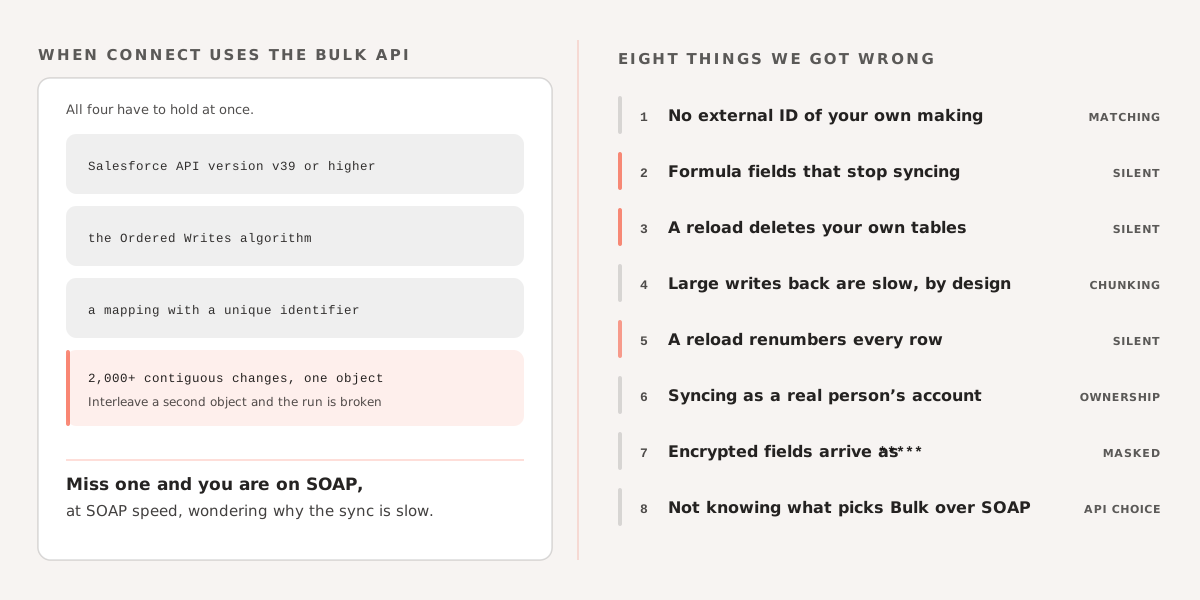
Connect chooses between the SOAP and Bulk APIs on its own, and Bulk is substantially faster for large datasets. Per the documentation, it uses Bulk only when all of the following hold:
- The connection’s Salesforce API version is v39 or higher
- The connection uses the Ordered Writes algorithm
- The mapping specifies a unique identifier
- Two thousand or more contiguous changes of the same type are made to a single object — for example, 5,000 INSERTs into Lead
Miss any one and you are on SOAP, at SOAP speed, wondering why the sync is slow. The contiguity requirement is the subtle one: interleaving inserts across objects breaks the run and drops you back to SOAP.
For what these look like once an org is at real volume, see Heroku Connect at Scale: What Goes Wrong and How to Fix It.
We help teams get Heroku Connect right from the start — and recover it when things have gone sideways. If you are dealing with sync issues or planning a new integration, see how we work with Heroku and Salesforce or get in touch.