
OrgVitals is a desktop app that scans a Salesforce org for technical debt, security risks, automation problems, code-quality issues, and performance concerns, then grades it A–F so you know exactly what to fix first. It runs entirely on your machine and reads your org through the Salesforce CLI you already use — your metadata never leaves your computer. The only exception is Ask Vita (opt-in, off by default; see §10).
Every clip below was recorded against OrgVitals' built-in demo mode, which uses a synthetic sample org family (“Acme”) so every screen is populated with realistic — but entirely fake — data. You can explore the exact same thing yourself: Help → Take the Tour starts a guided walkthrough over this sample data. See §11.
▶ Full walkthrough
A ~60-second tour of every feature.
1. How OrgVitals works
OrgVitals never handles your Salesforce username or password. Instead it relies on the
Salesforce CLI (sf) that you've already installed and
authenticated. When you pick an org, OrgVitals uses that CLI session to pull a
read-only snapshot of the org's metadata (Apex, LWC, flows, objects,
profiles, permission sets, and more), stores it locally, and runs its scanners against that
snapshot.
A single sign-in with Google (for licensing/identity) unlocks the app; from there everything is local. Because the analysis works from a stored snapshot, you can browse results, filter, export, and compare orgs without hitting Salesforce again.
2. Prerequisites & first launch
You need the Salesforce CLI. Install it and authenticate at least one org:
# install (see https://developer.salesforce.com/tools/salesforcecli)
sf org login web        # opens a browser to authenticate an org
sf org list             # confirm the org shows up
On launch OrgVitals runs which sf to detect the CLI. If it's missing, a prompt
explains how to install it. On first run you'll also:
- Accept the Terms / privacy notice (one-time consent gate).
- Sign in with Google — used for identity and licensing only; no Salesforce credentials are entered.
- A short guided tour starts automatically over demo data (you can skip it, and replay it later from Help → Take the Tour).
3. Connecting your org
Open the org picker in the top-left of the header. It lists every org your
Salesforce CLI is authenticated to (sf org list). Select one to make it the
active org — OrgVitals resolves its identity (18-char Id, instance URL, edition, user
count) and stores it locally.
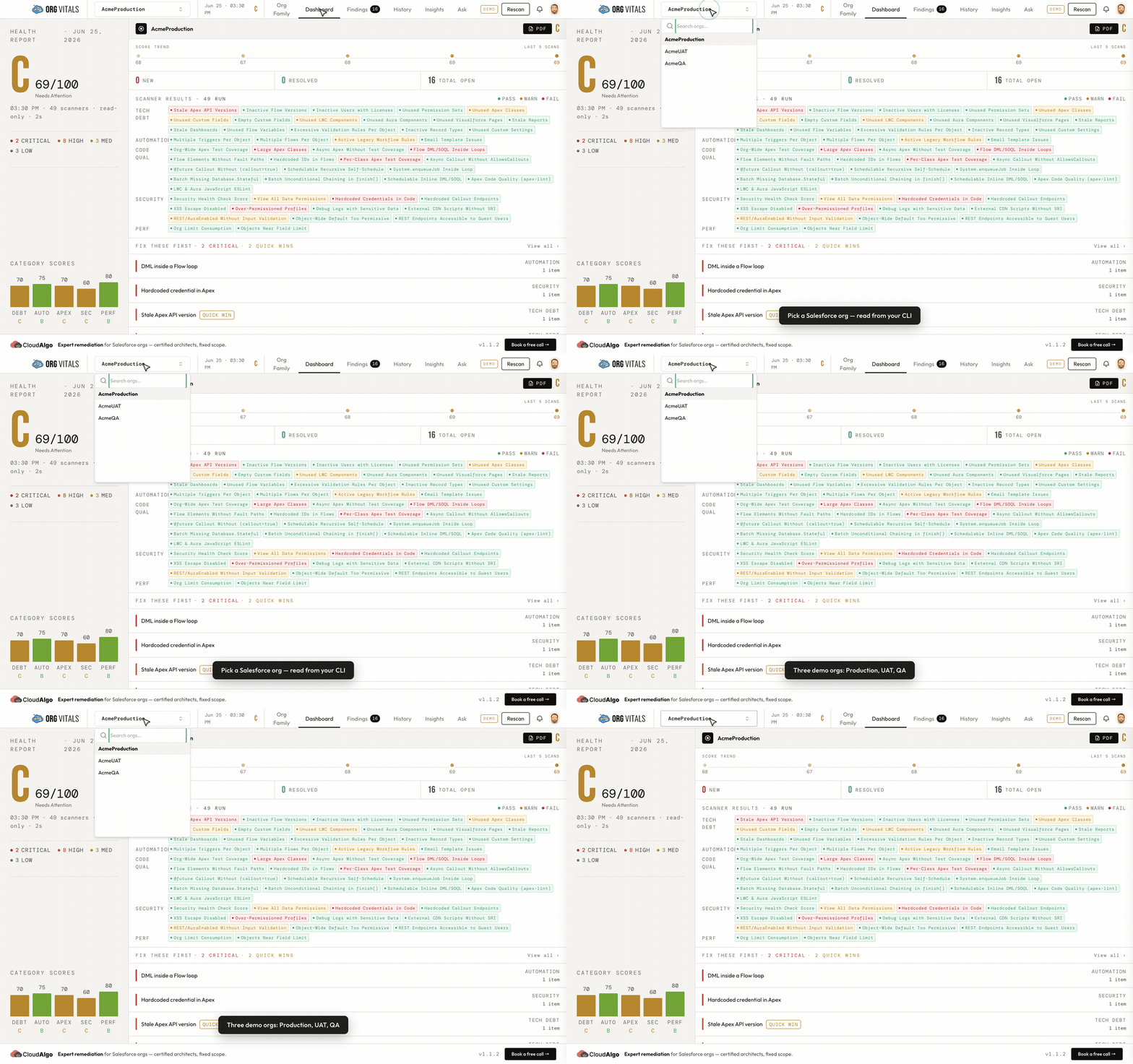
- Switching orgs at any time re-scopes the whole app to that org.
- API version: metadata queries use a target API version you can change under Settings → Salesforce API Version… (validated and cached per org).
- Org Family: if the selected org belongs to a family, an extra Org Family tab appears (see §9).
4. Running a scan
Click Rescan (or Run Scan on a freshly connected org) to open the scanner picker.
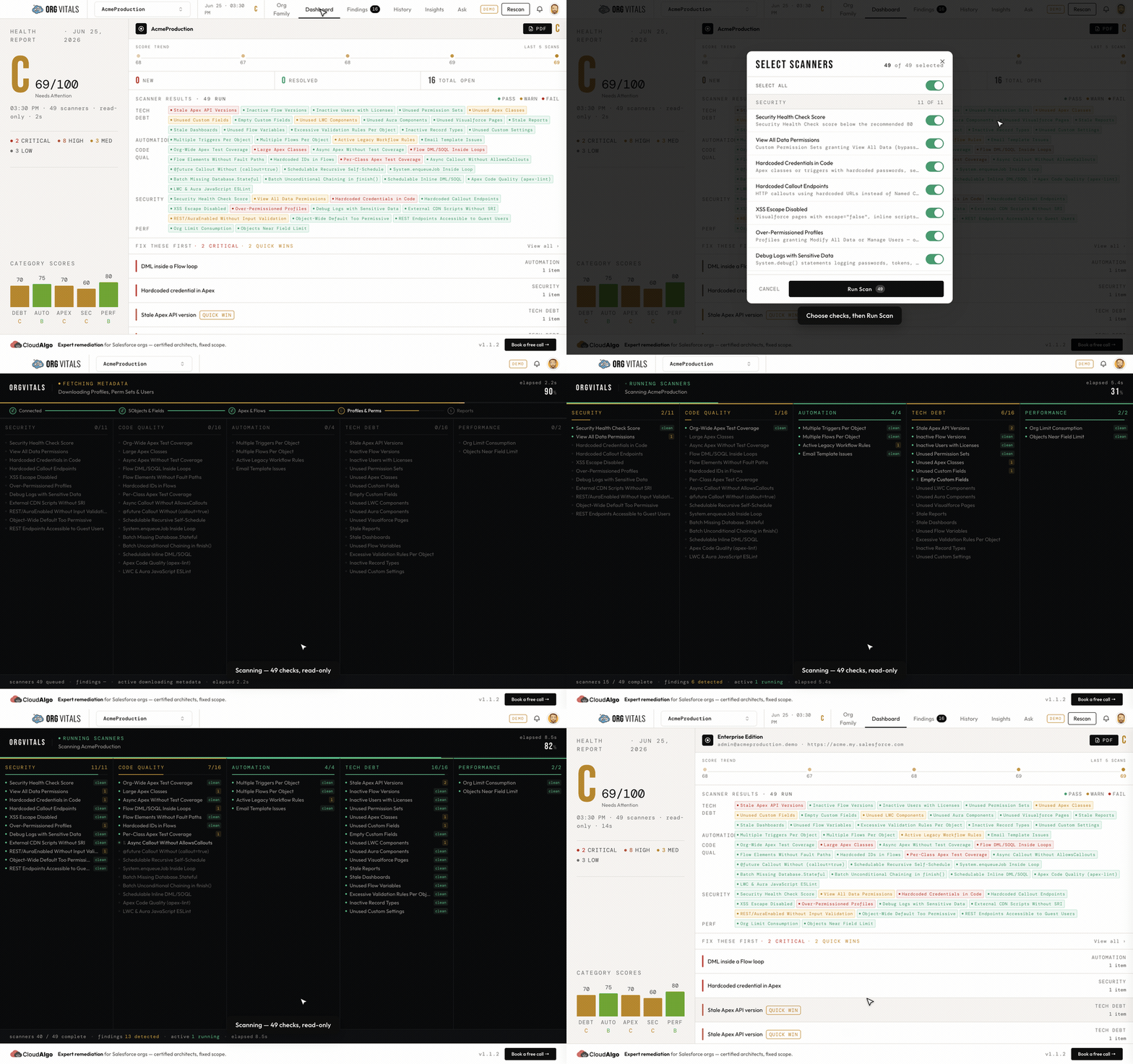
Choose what to run. All 49 scanners are enabled by default, grouped into five categories. Toggle individual scanners or whole categories — for example, run only the Security checks before a go-live. Some scanners expose configurable thresholds (e.g. “empty field %”, “max class lines”, “stale after N days”) you can tune before running.
What happens during a scan:
- Connect — OrgVitals opens the CLI session for the org.
- Fetch metadata — a single snapshot is downloaded (SObjects & fields, Apex & flows, profiles & permissions, reports). A live terminal shows progress per phase.
- Run scanners — every selected scanner runs in parallel across a worker pool, in dependency order. The running finding count ticks up as they complete.
- Score & save — OrgVitals computes the overall score, grade, and per-category scores, persists the run, and opens the Dashboard.
Everything is read-only — no changes are made to your org.
The five categories
| Category | What it covers |
|---|---|
| Security | Hardcoded credentials, over-permissioned profiles/permission sets, View/Modify All Data, guest access, XSS, missing input validation |
| Code Quality | Test coverage, large classes, SOQL injection, async without tests, Apex/LWC lint |
| Automation | Flows (DML/SOQL in loops, missing fault paths, hardcoded IDs), legacy workflow rules, inactive/duplicate automation |
| Tech Debt | Stale API versions, unused Apex/LWC/Aura/VF/fields, empty fields, excessive validation rules |
| Performance | SOQL/DML in loops, object field limits, org limit consumption |
Batch scans. You can scan multiple orgs in one run (used by Org Family). Each org is scanned in isolation, so one failure doesn't abort the batch; you get a per-org progress list and a completed/failed summary.
5. How scoring works
OrgVitals turns findings into a score with a single, transparent model.
Step 1 — per-category penalties. Each finding subtracts points from its category, by severity:
| Severity | Penalty |
|---|---|
| Critical | −25 |
| High | −10 |
| Medium | −4 |
| Low | −1 |
Each category starts at 100 and can't drop below 0.
Step 2 — weighted overall score. Category scores are combined by weight:
| Category | Weight |
|---|---|
| Security | 30% |
| Code Quality | 20% |
| Automation | 20% |
| Tech Debt | 20% |
| Performance | 10% |
Step 3 — letter grade.
| Grade | Score |
|---|---|
| A | 90–100 |
| B | 75–89 |
| C | 60–74 |
| D | 45–59 |
| F | 0–44 |
Managed score. As you triage findings (mark them fixed / ignored / snoozed), the Dashboard also shows a managed score that recomputes health excluding what you've dismissed — so you see both the raw picture and where you'll land after planned work.
6. Dashboard
The Dashboard is your landing view after a scan.
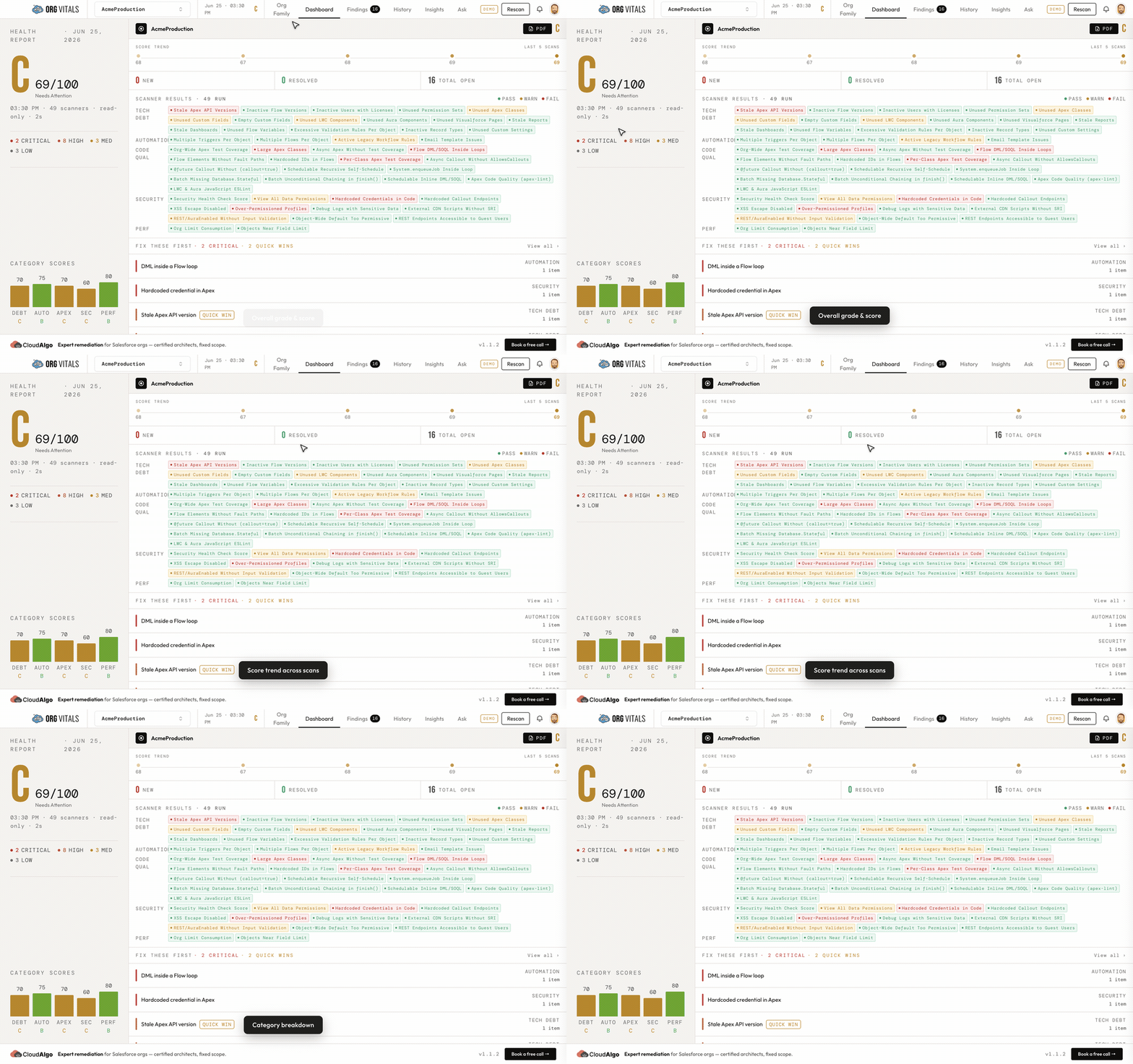
- Overall grade & score — a large A–F grade with the numeric score out of 100.
- Score trend — your overall score plotted across recent scans, so you can see direction.
- New / Resolved / Total open — how findings changed versus the previous scan.
- Scanner results grid — every check that ran, shown as pass / warn / fail, grouped by category.
- Category breakdown — the five category scores with their own letter grades.
- Fix These First — the highest-impact issues plus quick wins (high impact, low effort), so you always have a starting point.
- Export PDF — render the full report to a PDF (see §12).
7. Findings & triage
The Findings tab is the complete, filterable list of everything the scanners found.
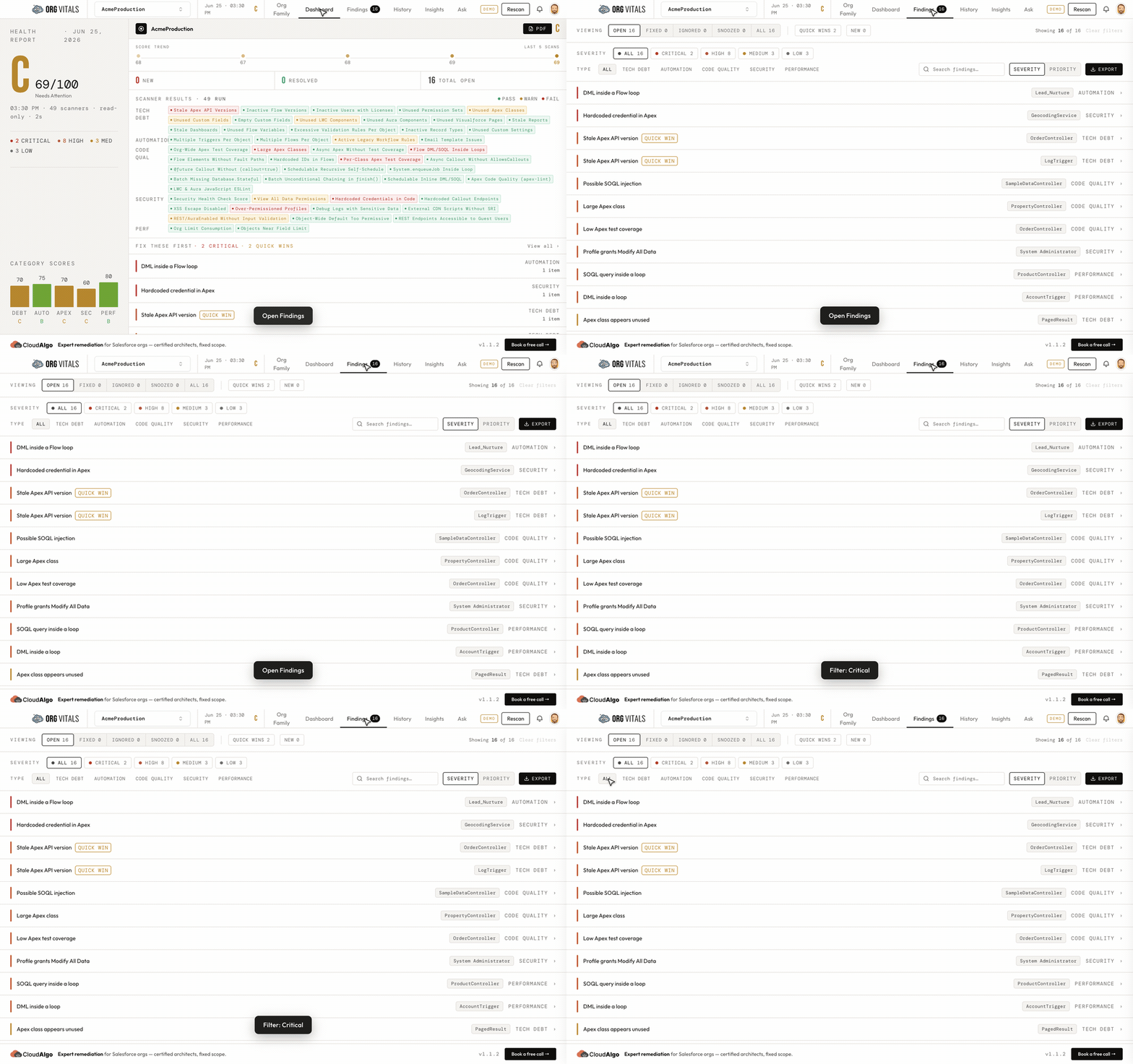
See a finding's detail. Click any finding row to expand it — you get the full explanation, the affected component, an effort estimate, remediation guidance, and the status controls (Open / Fixed / Ignored / Snooze) right there.
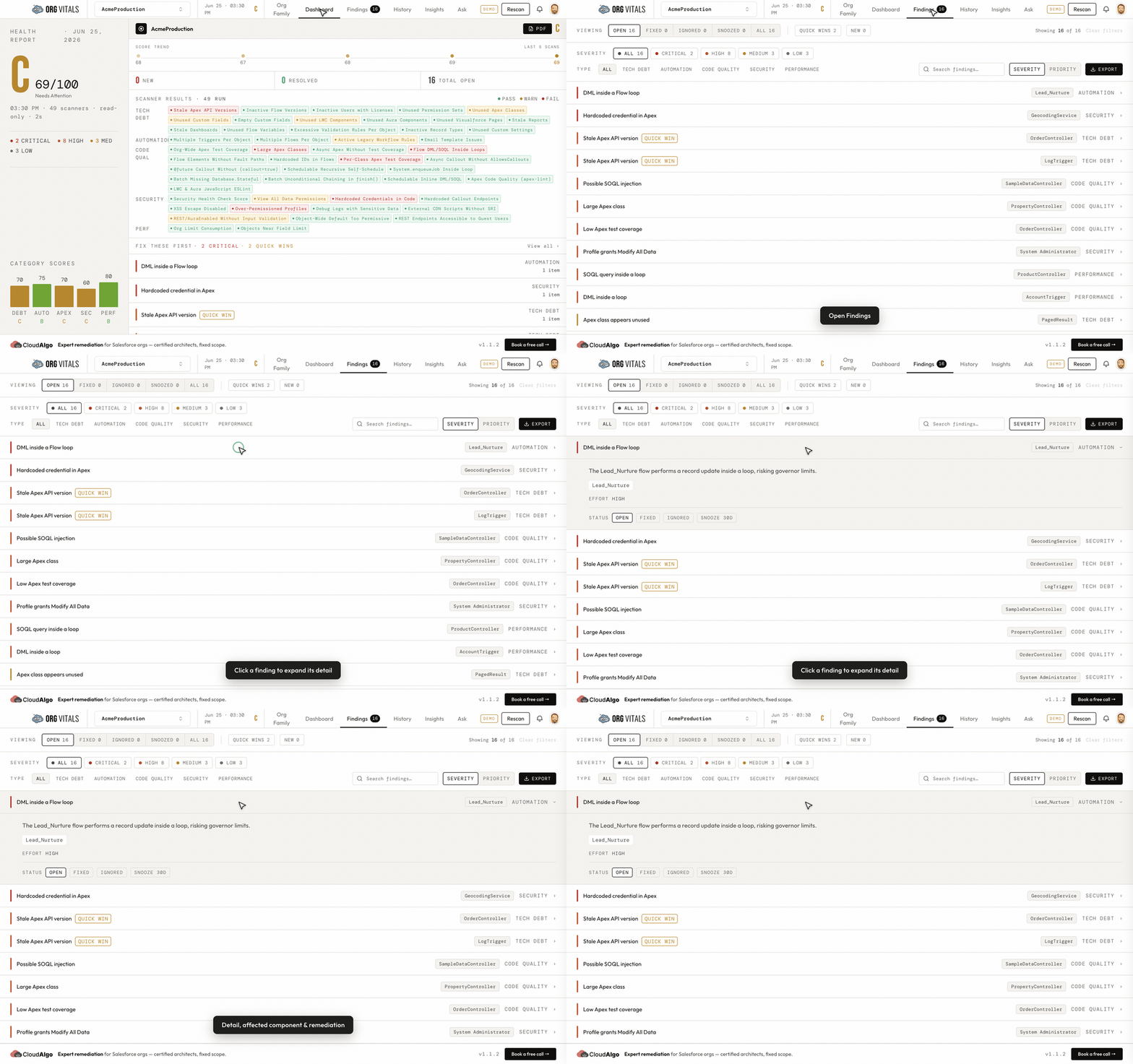
Each finding shows: category, severity (critical / high / medium / low), a title, a detailed explanation, the affected count, the linked component (click through to Insights), and remediation guidance.
Filtering & sorting
- By severity — the chips at the top (Critical / High / Medium / Low / All).
- By category, by scanner, and by workflow status.
- Search findings by text.
- Prioritize — sort by a Severity or Priority model that surfaces quick wins first.
Triage workflow. Give any finding a status; it's saved per org and persists across future scans (matched by a stable finding key), so your triage survives re-scans.
| Status | Meaning |
|---|---|
| Open | Default — not yet acted on |
| Fixed | You've remediated it |
| Ignored | Won't fix / not applicable |
| Snoozed | Deferred until a date you choose |
Dismissed findings drop out of the Dashboard's managed score.
Export & cleanup
- CSV — export the findings table for sharing or ticketing.
- PDF — export the full formatted report.
- Cleanup generation — for findings that map to deletable metadata (unused Apex classes, fields, LWC, Aura, VF pages, empty fields), OrgVitals can generate a
destructiveChanges.xml+package.xmlpair you feed to a normal metadata deploy. OrgVitals never performs the deletion itself.
8. Insights — exploring your metadata
Insights turns your org into a browsable, cross-linked map of its metadata.
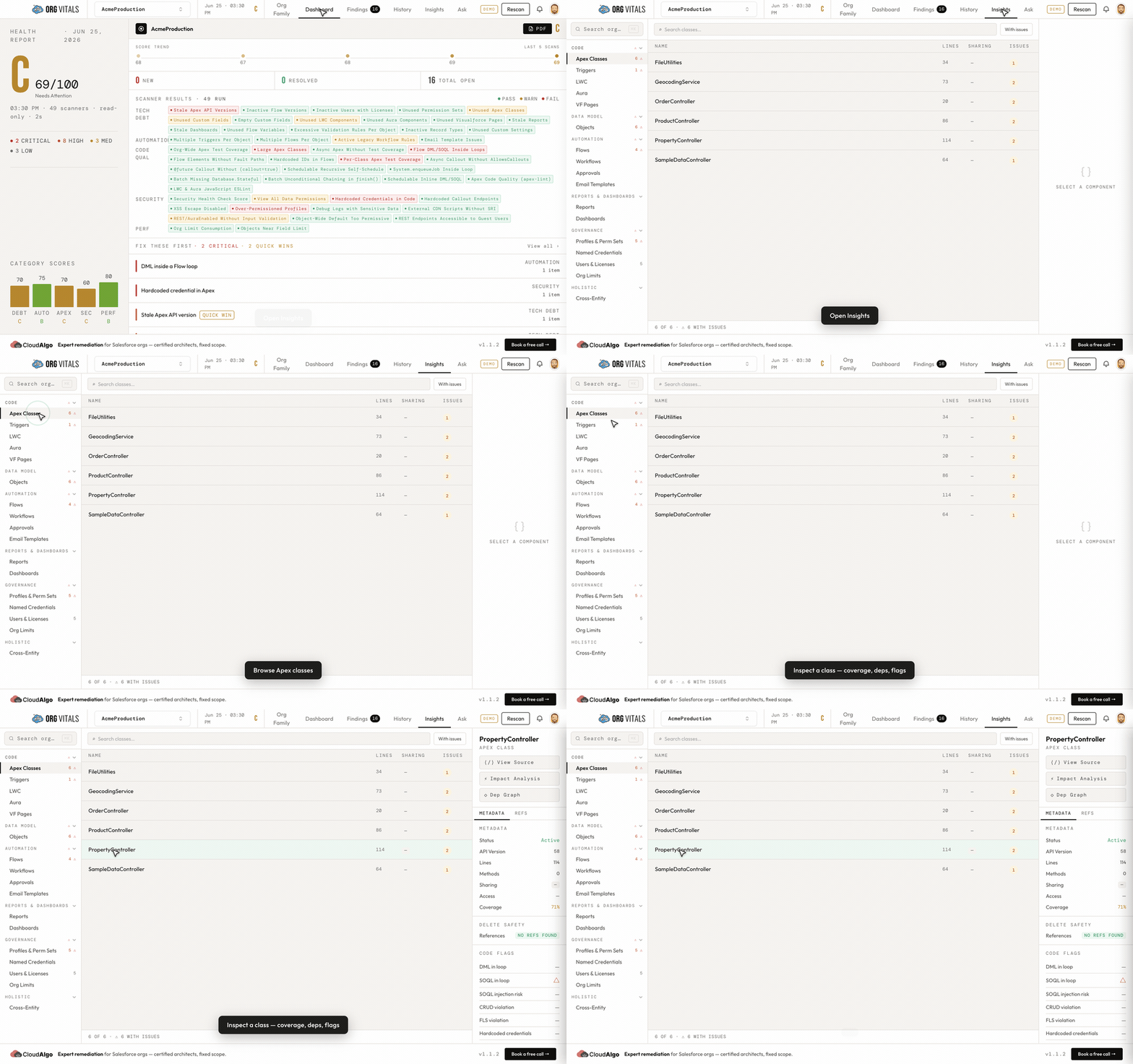
- Browse by type — Apex classes, triggers, LWC, Aura, Visualforce, objects, fields, flows, workflows, approvals, email templates, profiles, permission sets, reports, dashboards, named credentials, users, org limits, and more, each with counts and an “⚠ with issues” filter.
- Component detail — for any component: status, API version, line/method counts, test coverage, sharing/access, and code flags (SOQL/DML in loop, SOQL injection risk, CRUD/FLS violations, hardcoded credentials).
- Delete safety — see what references a component before you remove it (“no refs found” vs a list of dependents).
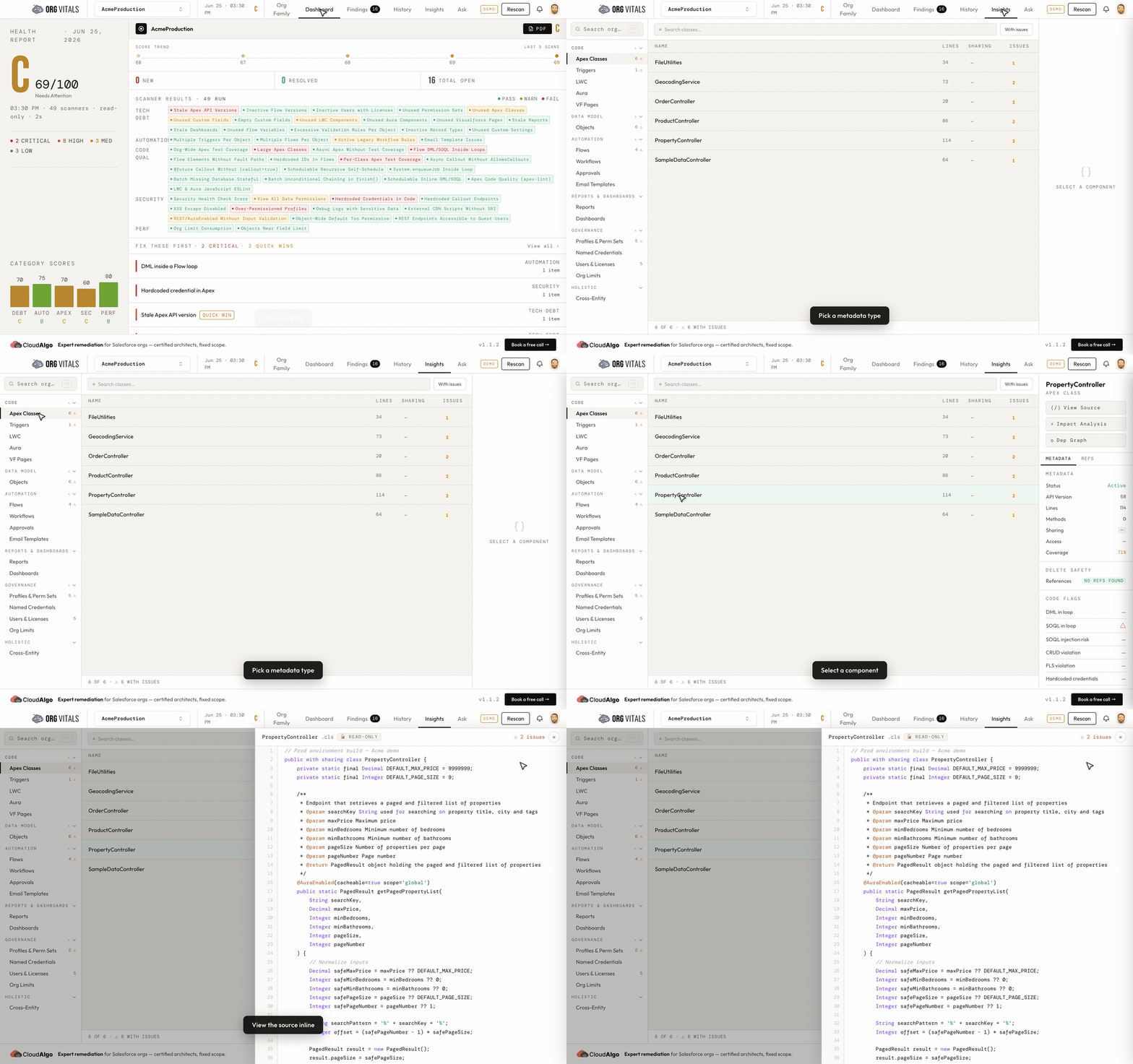
- View source — read the actual Apex/LWC/Aura/VF source inline, with the flagged lines.
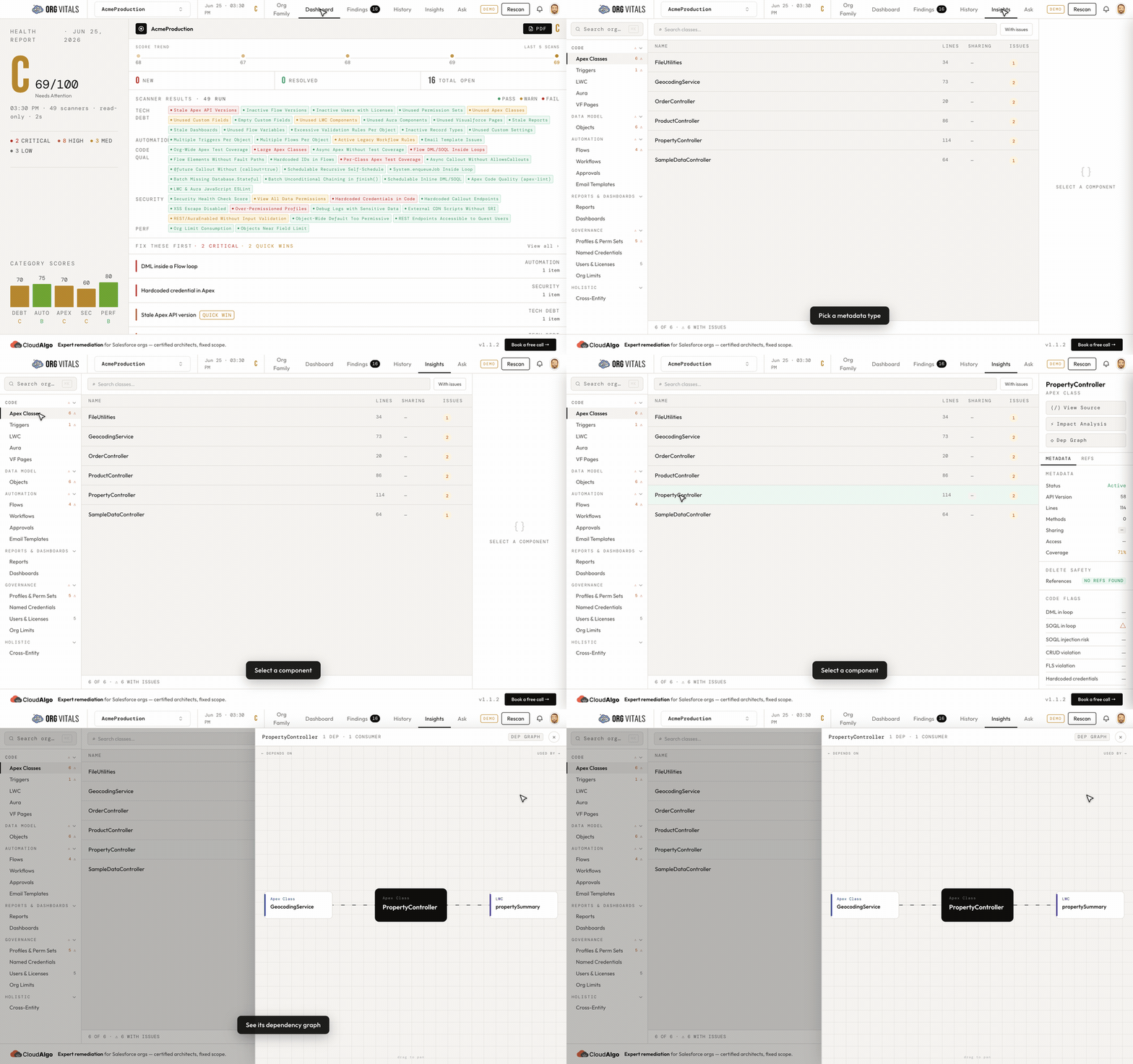
- Dependency graph — a visual map of directed relationships between components (triggers → objects, LWC → Apex, flows → objects, SOQL queries, and more).
- Impact analysis — for a chosen component, the blast radius: everything that depends on it.
- Global search — press ⌘K / Ctrl-K anywhere to fuzzy-search all indexed metadata and jump straight to it.
View the source. Pick a metadata type (e.g. Apex Classes), select a component, and click View Source to read the syntax-highlighted, read-only source inline — flagged lines and issue counts included.
See the dependency graph. From the same detail panel, click Dep Graph to visualize what a component depends on and what depends on it — so you understand the blast radius before changing anything.
9. History & Org Family
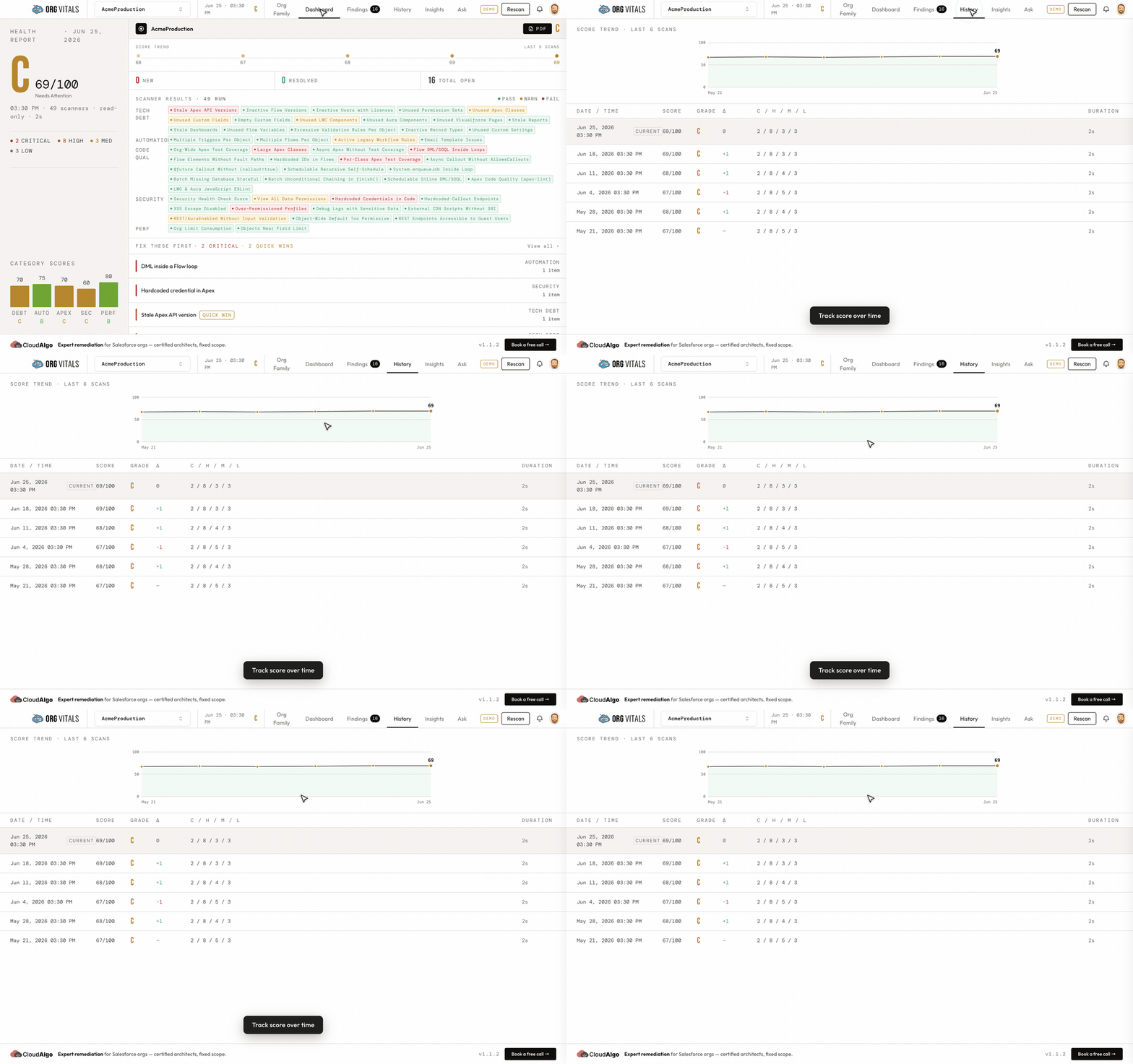
History — progress over time
Every scan is saved locally. The History tab plots your score over time and lists each run with its grade, severity counts, and duration, so you can tell whether remediation work is actually moving the needle. Select an older scan to review its findings or compare it to the current one.
Org Family — compare related orgs
An Org Family is a user-named group of related orgs — for example a production org and its sandboxes (QA / UAT / Prod). One org belongs to at most one family. Create and manage families from the Org Family tab (which appears when the selected org is in a family).
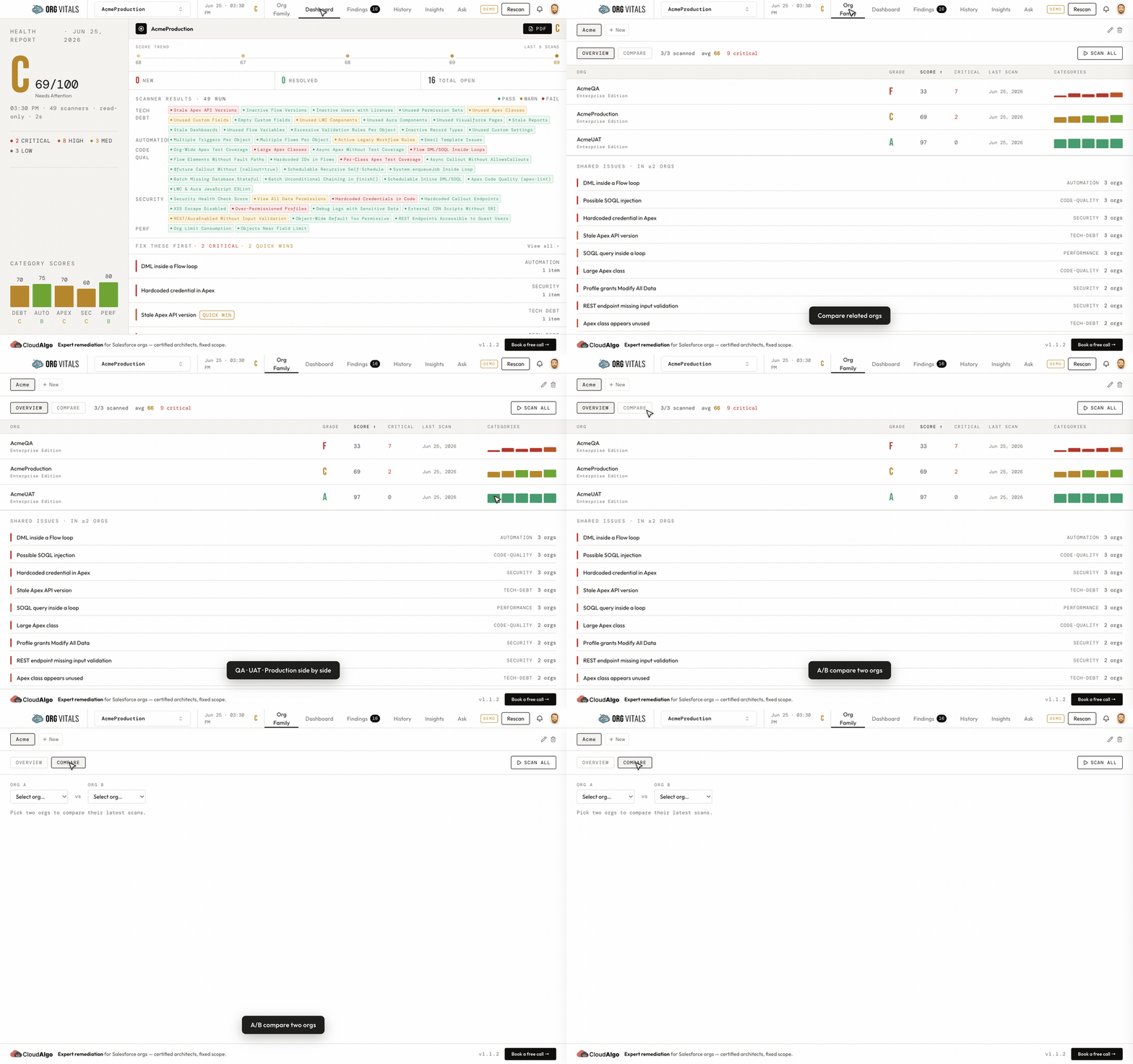
- Rollup / Overview — every org in the family side by side: score, grade, critical count, category bars, and last-scan date. Scan All runs a batch scan across the family.
- Shared findings — checks that appear in two or more orgs of the family, so you can tell systemic problems from one-off ones.
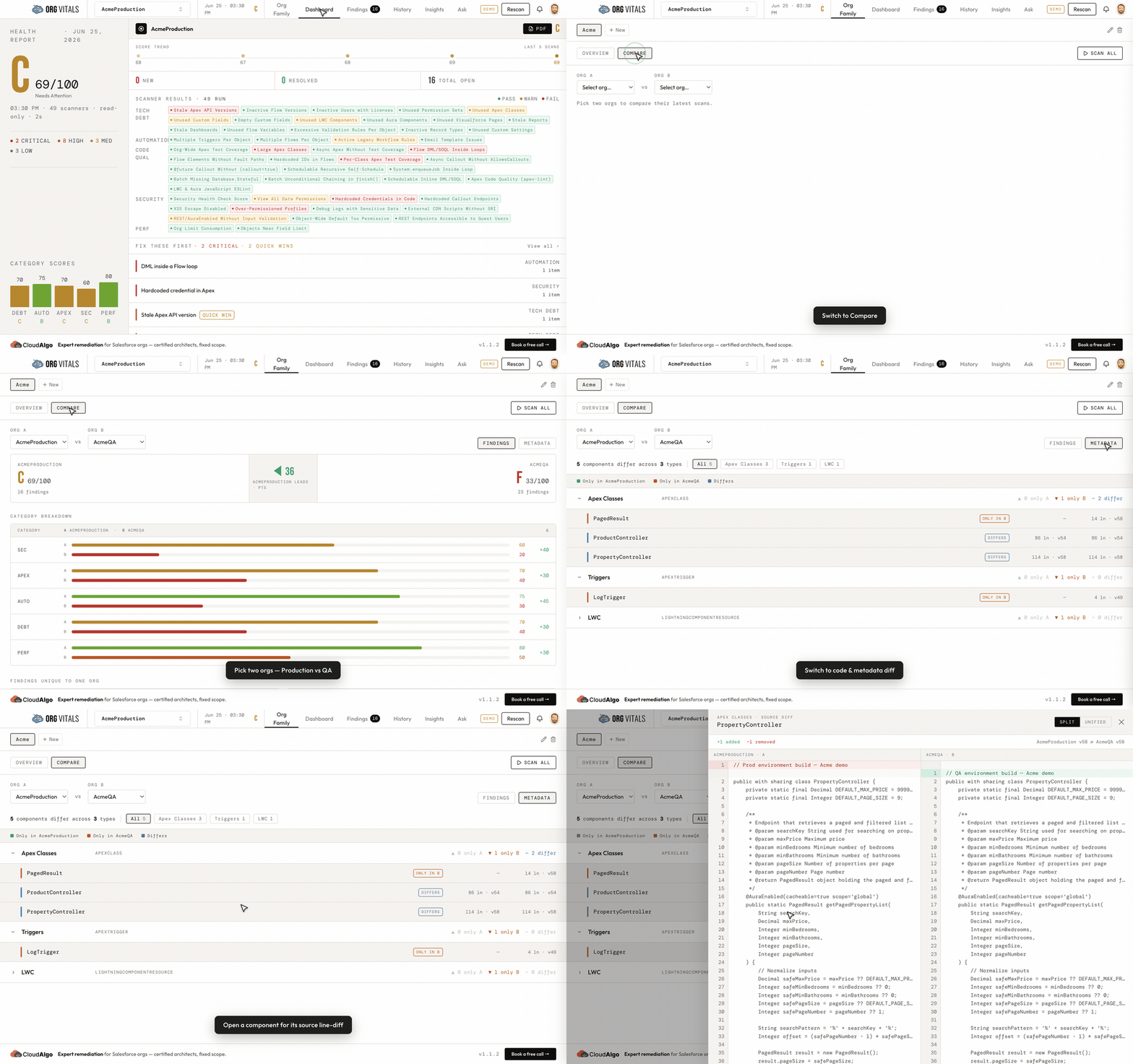
- A/B Compare — pick two orgs and see a latest-scan diff: category deltas, per-check differences, and a finding-level diff.
- Metadata diff — a structural diff between two orgs across nine metadata types (Apex, triggers, VF, LWC, Aura, objects, fields, flows, workflow rules, email templates, profiles, permission sets, reports, dashboards): what exists only in A, only in B, or differs.
- Source diff — a full line-by-line diff of a single component's source between the two orgs (split or unified view).
To compare code: open Compare, pick two orgs (e.g. Production vs QA), switch to the Metadata tab to see what's only in A, only in B, or differs, then click any differing component for its source line-diff.
10. Ask Vita — AI assistant
Vita answers plain-English questions about your org and links the relevant records in the answer — for example: “Which flows have the highest risk?”, “Which profiles have Modify All Data?”, “Which Apex classes have zero coverage?”.
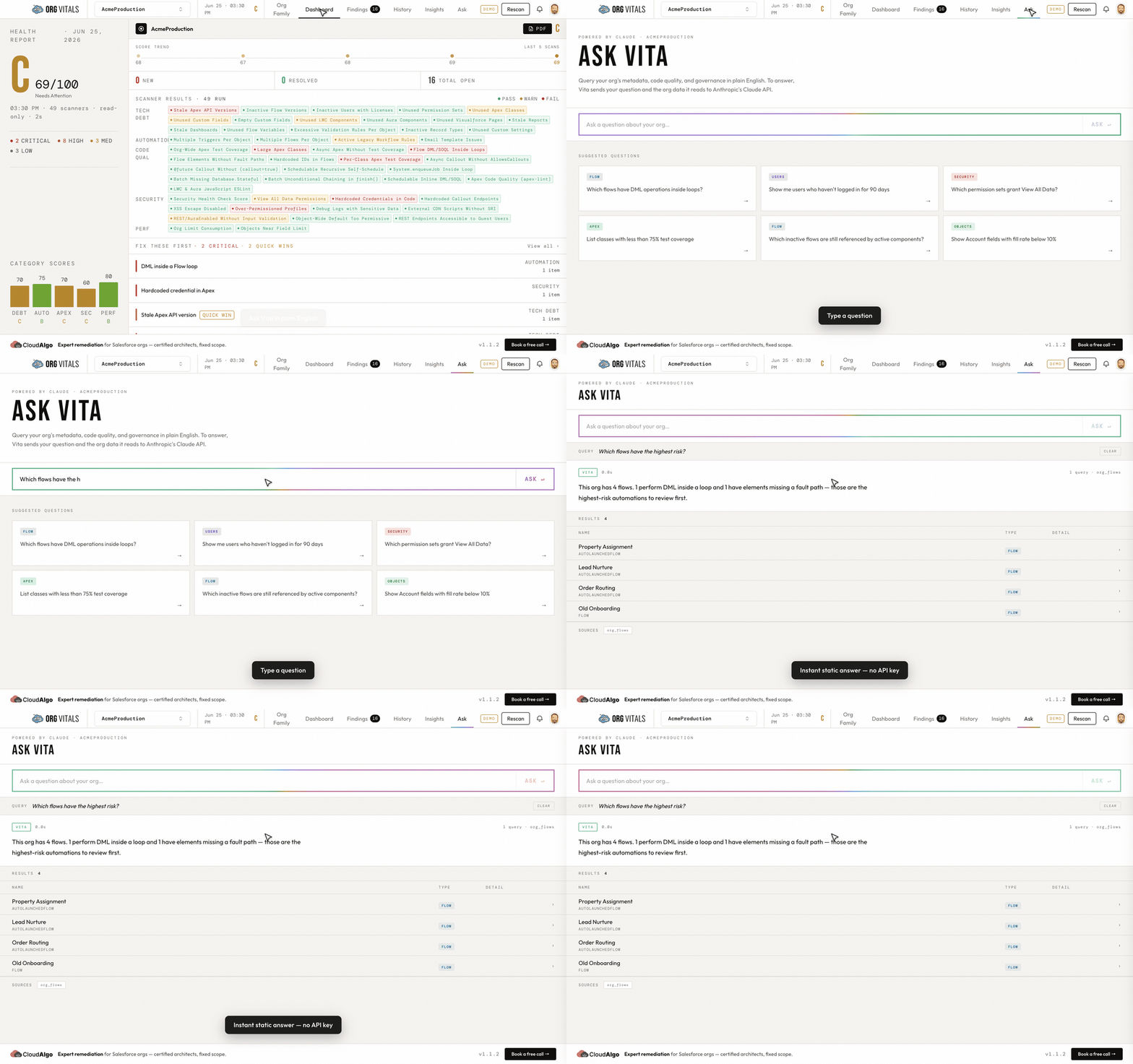
Vita can read your local scan data through read-only lookups (flows, Apex classes/triggers, users, profiles, permission sets, fields, objects, findings, org limits) and summarizes what it finds.
Privacy — Vita is opt-in and off by default. It is the one feature that sends data off-device: to answer a question, it sends that question plus the specific metadata it reads to Anthropic's Claude API. To use it in a real org you supply your own Anthropic API key (stored encrypted, locally), acknowledge the notice, and enable Vita. Nothing is sent to OrgVitals' servers.
Vita returns static sample answers instantly — no API key is required and nothing is sent anywhere — so you can see the experience without configuring anything.
11. Demo mode & the guided tour
OrgVitals ships with a self-contained demo mode so you (or a teammate evaluating the app) can see every feature fully populated without connecting a real org.
- The guided tour runs automatically the first time you launch the app, walking through the Dashboard, Findings, Insights, History, Org Family, and Ask Vita over the sample Acme org family. Use Next / Back, or Skip at any time. When you finish, the app returns to your real (empty) state, ready to connect your own org.
- Replay anytime from Help → Take the Tour.
- While demo data is showing, a small DEMO badge appears in the header, and all data is the synthetic Acme family — your real org data is never touched.
The Acme family demonstrates the full score range and the QA/UAT/Prod comparison workflow:
| Demo org | Role | Grade |
|---|---|---|
| Acme UAT | UAT | A |
| Acme Production | Prod | C |
| Acme QA | QA | F |
12. Notifications, reports & housekeeping
Notifications
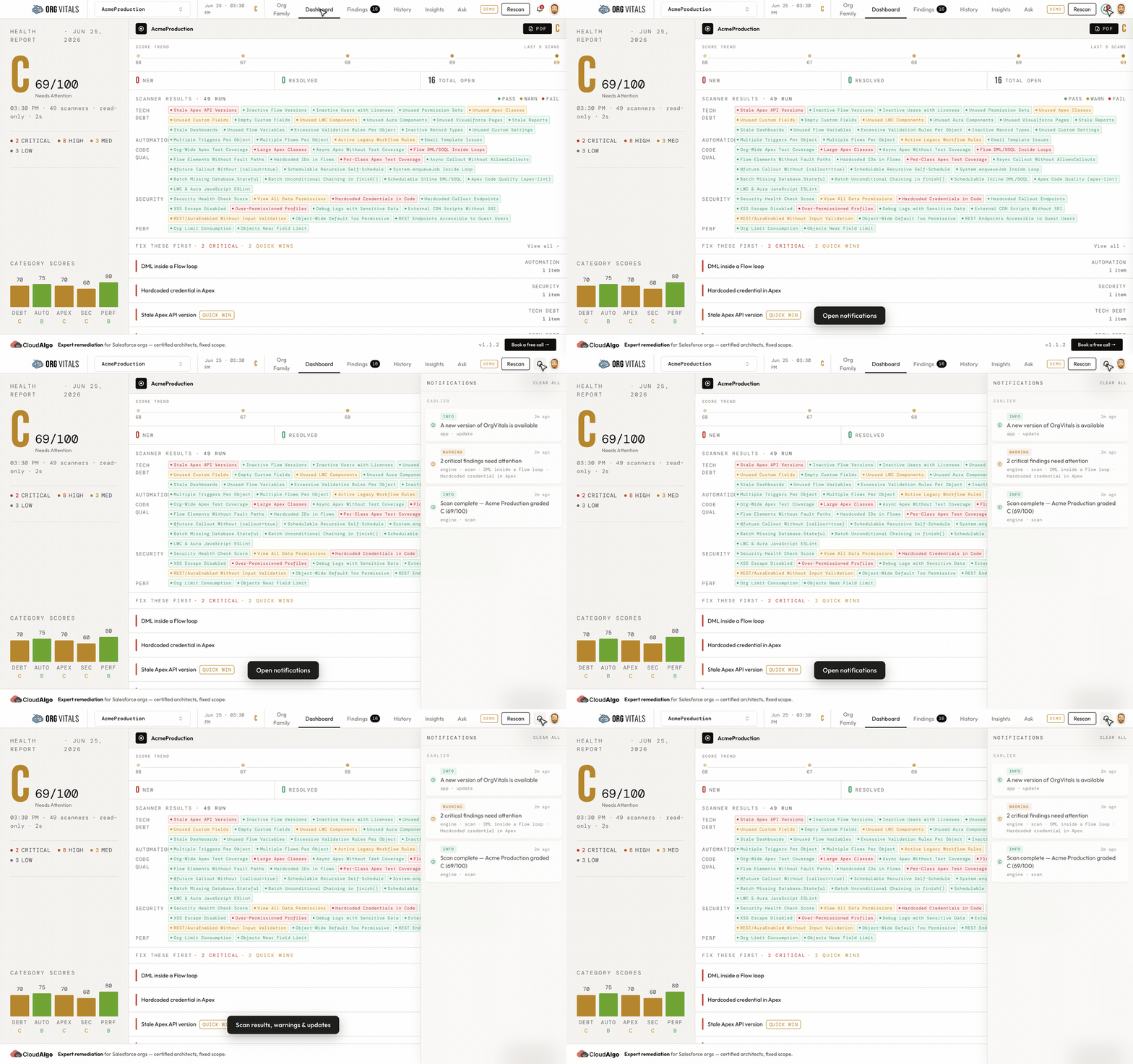
The bell in the top-right opens the notification panel — scan results, warnings, export outcomes, and app updates land here, newest first. Unread items are badged on the bell; open the panel to mark them read, or Clear all.
Export a report (PDF) and findings (CSV)
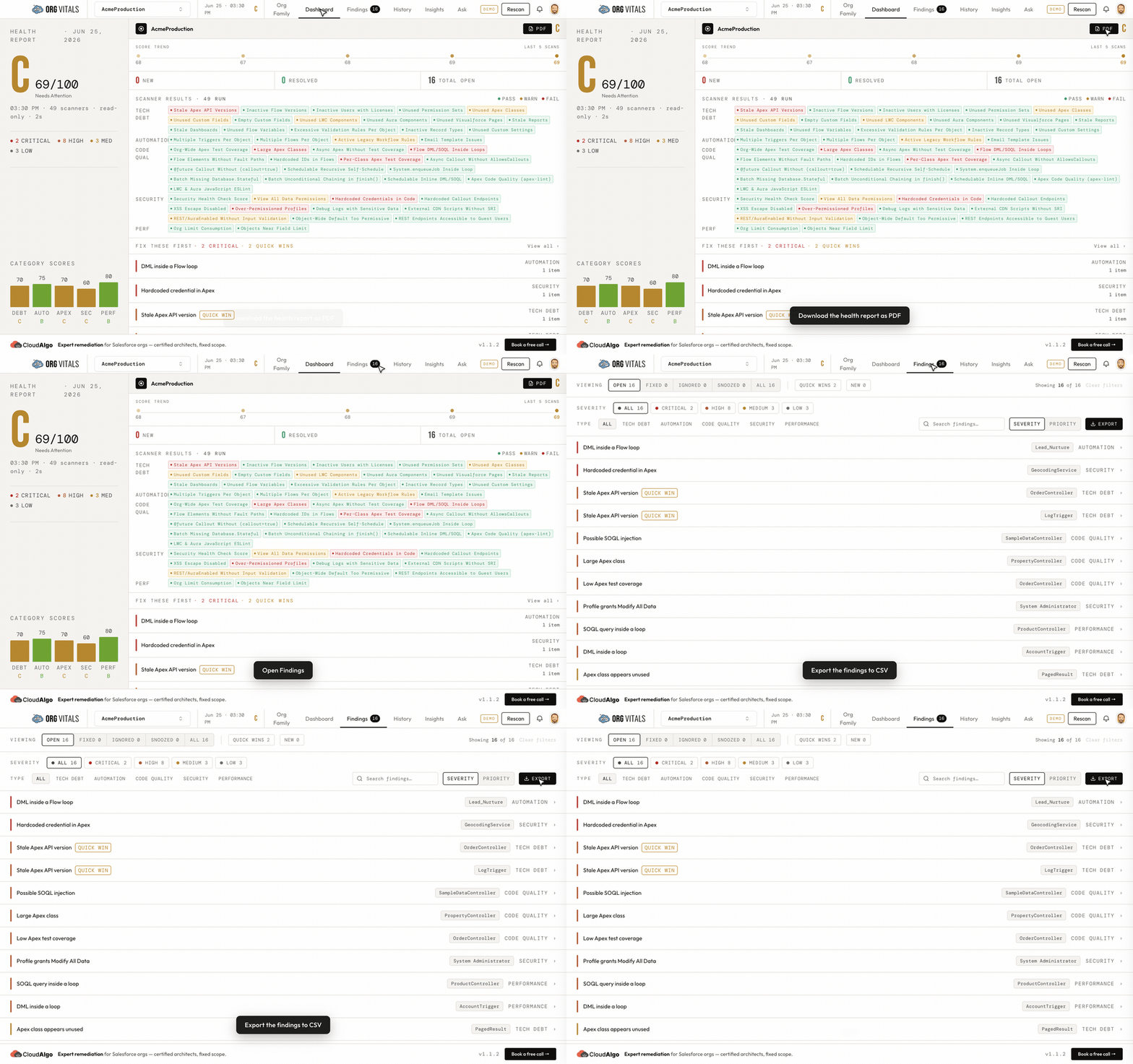
- PDF — on the Dashboard, click PDF to export the full health report. OrgVitals renders it and opens a save dialog so you choose where to write the file; you'll get a notification when it's saved.
- CSV — on the Findings tab, click Export to save the currently-filtered findings as CSV (great for tickets or spreadsheets). Whatever filters are active is what gets exported.
Delete an org-family mapping
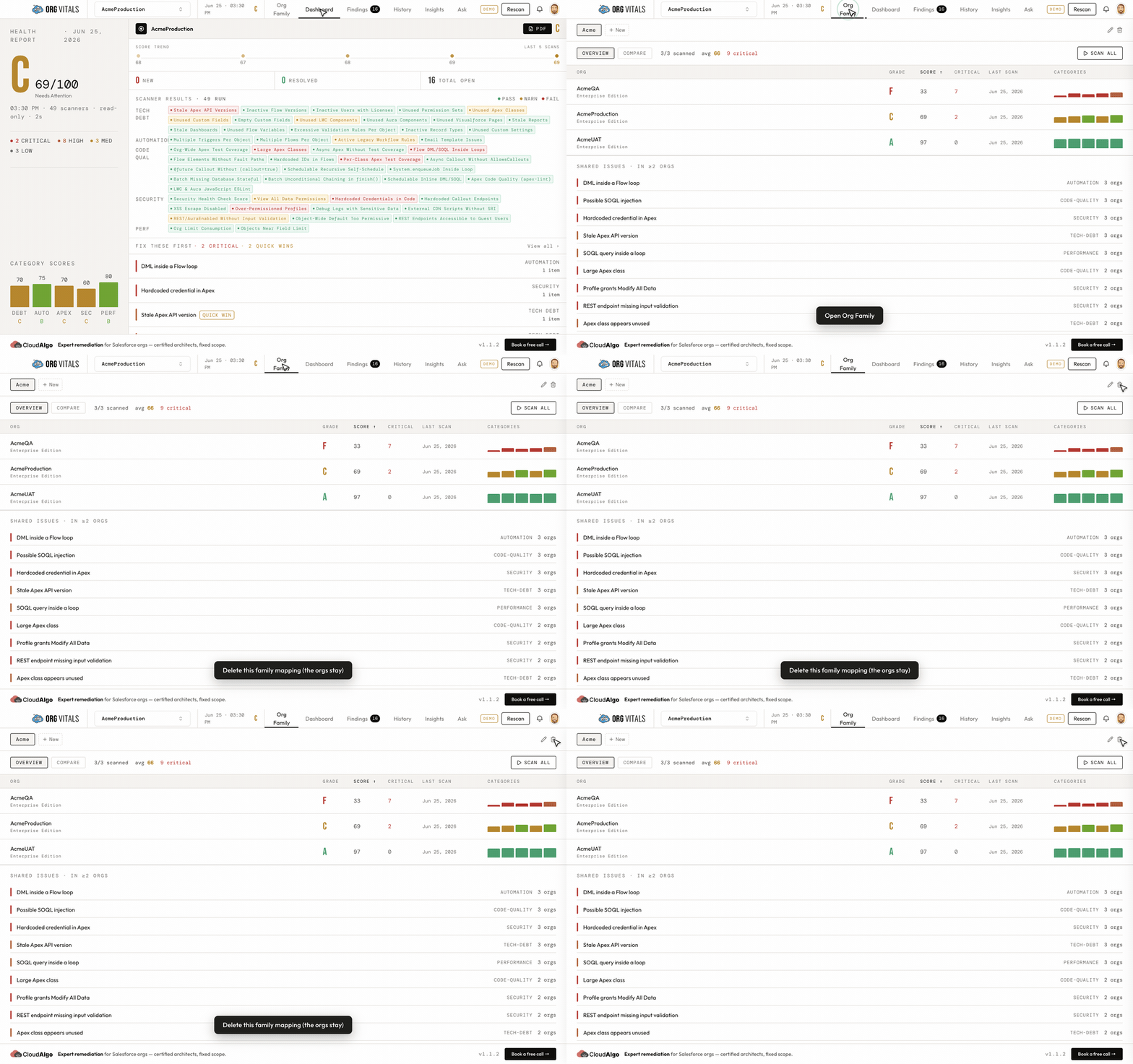
An Org Family is just a saved grouping — deleting it never touches your orgs or their scans. On the Org Family tab, use the trash icon next to the family name to remove the grouping; the member orgs remain exactly as they were.
13. Tips, shortcuts & FAQ
Shortcuts
- ⌘K / Ctrl-K — open global metadata search from anywhere.
- Rescan (header) — re-run a scan on the current org.
- Help → Take the Tour — replay the guided walkthrough.
Exporting reports
- CSV exports the findings table; PDF exports the full formatted report (rendered off-screen and saved via a normal file dialog). You can re-open PDFs OrgVitals previously wrote.
FAQ
- Does OrgVitals change my org? No. Scans are strictly read-only. Even cleanup generation only produces a
destructiveChanges.xmlyou choose to deploy yourself. - Where is my data stored? In a local SQLite database in your OS user-data folder. It is never uploaded (Ask Vita is the only opt-in exception, and only sends what's needed to answer your question).
- Do I have to enter Salesforce credentials? No — OrgVitals uses your existing Salesforce CLI sessions.
- The CLI isn't detected. Install the Salesforce CLI and run
sf org login web, then reopen OrgVitals. - Can I compare a sandbox against production? Yes — put them in an Org Family and use A/B Compare, metadata diff, and source diff.
Built by CloudAlgo. Questions? Help → Contact Support.